Are you a small or medium-sized business owner looking to take your marketing efforts to the next level? Perhaps you’ve dabbled in Photoshop but find yourself spending countless hours trying to perfect your designs. Well, fear not! In this blog post, we’ll explore one of the most sought-after Photoshop techniques and how you can tackle it efficiently, saving you time and effort.
Unlocking the Power of Photoshop
Mastering Photoshop is no walk in the park. It’s a complex tool that takes years to truly master. But fortunately, as the software has become more user-friendly over time, there are now newer techniques for beginners to tackle tricky tasks that might otherwise consume all of your time. After all, your precious hours are better spent focusing on your business and doing what you do best, rather than getting lost in the intricacies of design software.

Removing Backgrounds Like a Pro
You may be wondering how to make backgrounds transparent in Photoshop. There’s a reason this is the most Googled question about Photoshop. Whether you’re a seasoned designer or just starting out, removing backgrounds can be a daunting task, especially with more advanced subjects. Plus there are a tonne of ways to go about it, some of which take way longer than others for the same results.
In our latest social media video, we shared some of our favorite methods for removing backgrounds quickly and effectively. From the magic of the “Select Subject” feature, which with one click uses AI to analyze the selected layer to isolate and select the subject — to the time-saving Object Selection tool, with which you simply draw a rough outline around your subject to give the software a guide to where it should be looking for your object.
And for those pesky hair and fur details, the Select and Mask workspace is your new best friend, as you can use the Refine Hair button, and pick from a toolbelt of techniques to get that perfect selection.
In the video Elliott also mentions the best way to actually remove the background once you’ve got the perfect selection and ironed out any kinks. To do this we dip out toes into the non-destructive world of layer masks which allow you to go back at any point and edit the selection, in case you’re 20 mins of editing into a project and you realise a piece of an ear is missing (happens all the time).
There’s no shortage of tricks to help you get the job done, it’s all about knowing where to look. For a more detailed look at how to use these, make sure to take a look at Elliott’s video here!
Working Smarter, Not Harder in Photoshop
At the end of the day, our mantra is simple: work smarter, not harder. While Photoshop may seem like a daunting beast, there are ways to streamline your workflow and save valuable time. But if you ever find yourself struggling to wrangle Photoshop into submission, don’t hesitate to reach out for help. Our team of experts is here to lend a hand and ensure your branding, marketing assets and social media shine amongst a sea of small businesses that rely on Canva templates to be noticed (no shade! These are a great starter for any startup without a budget).
So there you have it – a crash course in Photoshop background removal, the smart way. We hope you found these tips helpful on your journey to design greatness. And remember, if you ever find yourself in need of a helping hand, our doors are always open. Let’s create something amazing together.
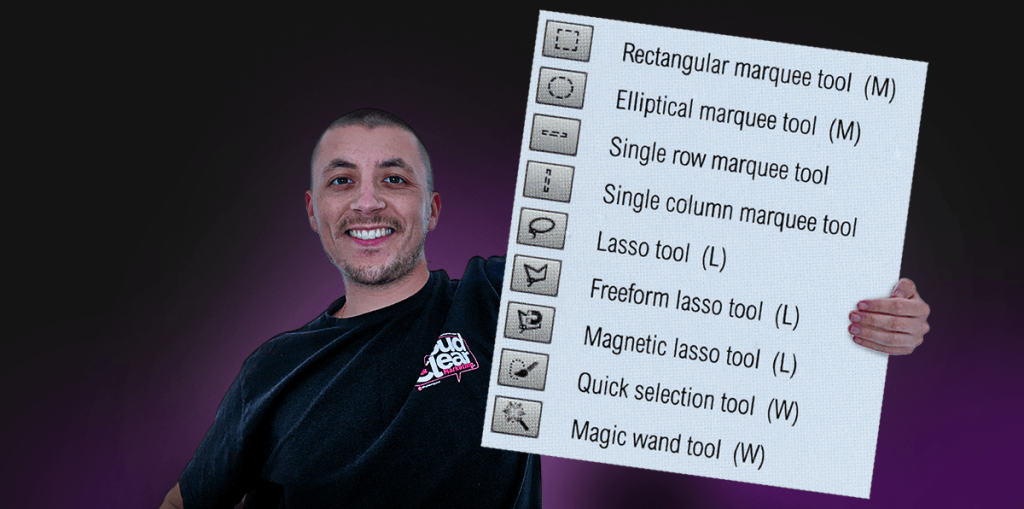
P.S. Here are the best selection tool keyboard shortcuts to make note of.